

Storage Buckets are available to all Hugging Face users and organizations and are billed on the amount of data stored, with per-TB pricing; see Hugging Face Storage pricing for current rates.
Step 1: Create a storage bucket
- On the Hugging Face Hub, open New > Storage Bucket (or go to
https://huggingface.co/new-bucket). - Choose the owner (your user or an organization) and a bucket name, for example
openrouter-traces.
Step 2: Generate S3 credentials
OpenRouter authenticates to the bucket with S3 credentials derived from a Hugging Face access token.- Go to Settings > Access Tokens and create a token with Write permission (or a fine-grained token with write access to the bucket’s namespace).
- In the token’s dropdown menu, click Generate S3 credentials.
- Copy the Access Key ID (it starts with
HFAK) and the Secret Access Key.
Step 3: Enable Broadcast in OpenRouter
Go to Settings > Observability and toggle Enable Broadcast.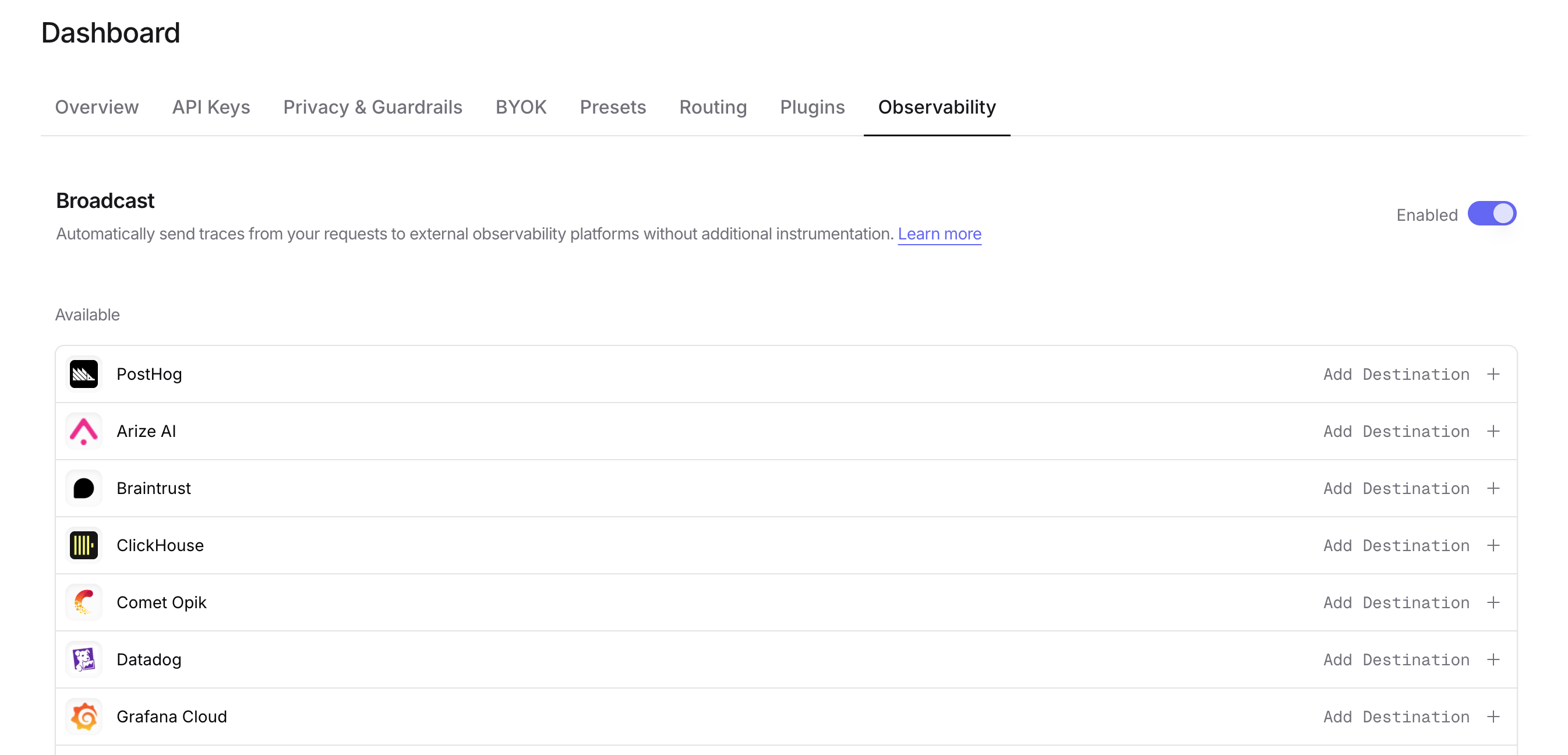
Step 4: Configure Hugging Face Storage Buckets
Click the edit icon next to Hugging Face Storage Buckets and enter:- Namespace: The user or organization that owns the bucket (e.g.,
my-org) - Bucket Name: The bucket name without the namespace (e.g.,
openrouter-traces) - Access Key Id: The
HFAK...access key ID from Step 2 - Secret Access Key: The secret access key from Step 2
- Path Template (optional): Customize the object path inside the bucket. Default is
openrouter-traces/{date}. Available variables:{prefix},{date},{year},{month},{day},{apiKeyName}
https://s3.hf.co/<namespace> in the us-east-1 region with path-style addressing, so there is no endpoint or region to configure.
Step 5: Test and save
Click Test Connection to verify the setup. OpenRouter writes a small.openrouter-connection-test.json file under your path template; the configuration only saves if that write succeeds. A 401 or 403 means Hugging Face rejected the credentials, the token lacks write access to the namespace, or the bucket doesn’t exist.
Step 6: Send a test trace
Make an API request through OpenRouter, then open the bucket on the Hub (https://huggingface.co/buckets/<namespace>/<bucket>) and browse to the date folder. Each trace is saved as a separate JSON file named {traceId}-{timestamp}.json.
Path template examples
Customize how traces are organized in your bucket:openrouter-traces/{date}- Default, organizes by date (e.g.,openrouter-traces/2024-01-15/abc123-1705312800.json)traces/{year}/{month}/{day}- Hierarchical date structure{apiKeyName}/{date}- Organize by API key name, then dateproduction/llm-traces/{date}- Custom prefix for environment separation
., or .. path segments or a leading / in object keys, so OpenRouter drops those segments from the rendered path: repeated slashes collapse, leading and trailing slashes are trimmed, and . or .. segments are removed.
Trace file format
Trace files are identical to the ones the S3 destination writes. A single-trace file is{ "trace": { ... }, "exported_at": "..." }; the custom metadata, billing quantities, and raw provider usage field locations documented for S3 apply unchanged.
Custom Metadata
Custom metadata from thetrace field is included in the JSON trace file stored in your bucket. The metadata is available in the metadata field of each observation within the trace.
Supported Metadata Keys
Example
Accessing Metadata in Hugging Face Storage Buckets
Each trace file is a JSON object. Custom metadata keys fromtrace are stored in the metadata field. Read the files with any S3 client pointed at https://s3.hf.co/<namespace>, with the hf CLI, or by mounting the bucket, then query them with any JSON-aware tool such as DuckDB or jq.
Additional Context
- The
userfield maps touserIdin the trace JSON - The
session_idfield maps tosessionIdin the trace JSON - Trace files include full input/output messages, token counts, costs, and timing data alongside your custom metadata
Privacy Mode
When Privacy Mode is enabled for this destination, prompt and completion content is excluded from traces. All other trace data (token usage, costs, timing, model information, and custom metadata) is still sent normally. Raw provider usage is replaced withnull and reported as privacy_mode, because a provider’s usage object can contain arbitrary future fields. See Privacy Mode for details.